Weft · Free for Mac

One conversation.
Sorted into topics.

If you text an AI assistant, your boss, or the family group about everything in one long conversation, it turns into a scroll of mixed subjects. Weft reads your conversations on your Mac and sorts each one into topics you can open, read and reply in, like separate email threads.

Free and open source (MIT). Requires macOS 15 or later.

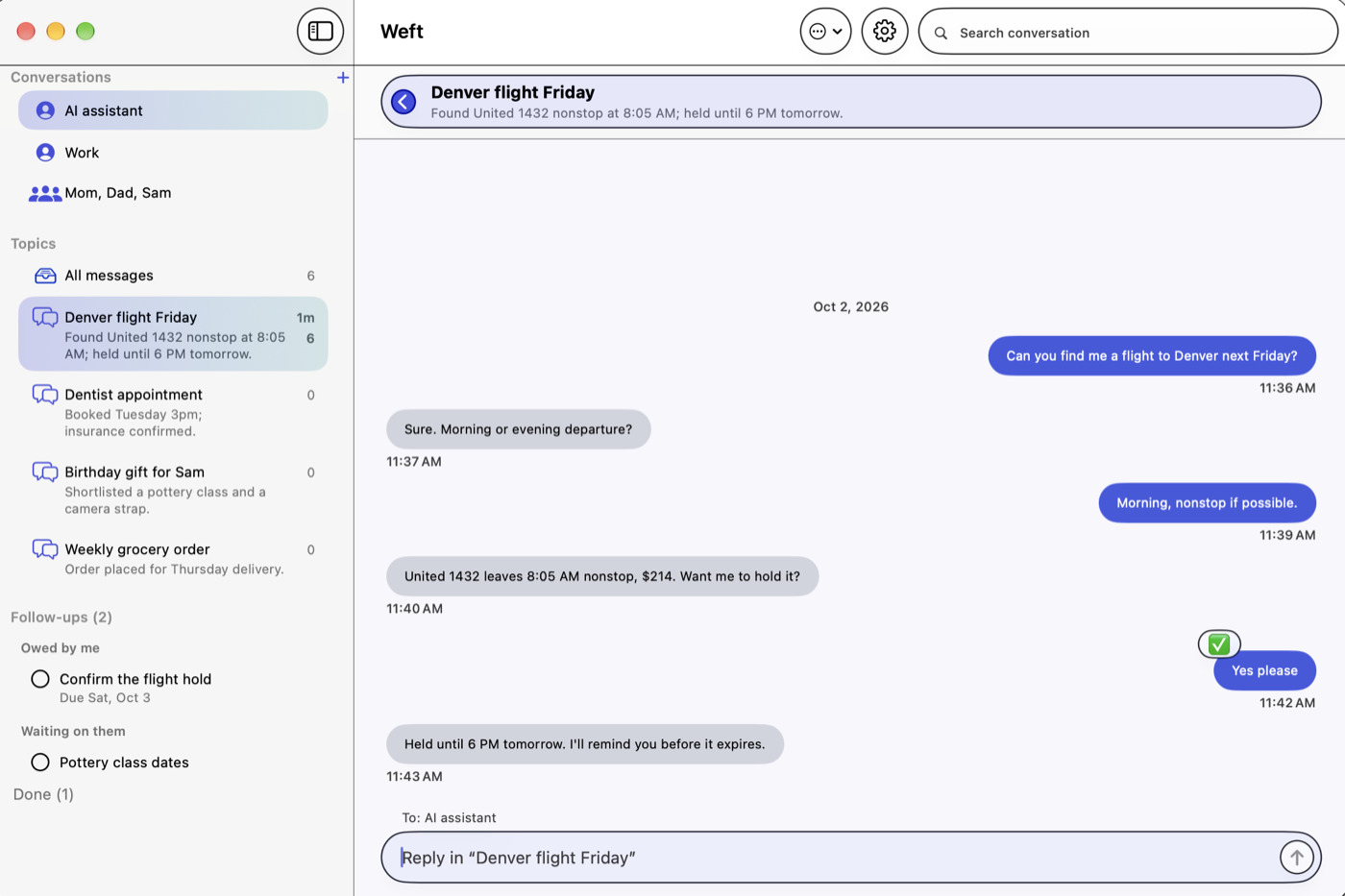
The Weft window in Light mode. The sidebar lists conversations, a Topics list with entries such as Denver flight Friday, Dentist appointment and Birthday gift for Sam, and Follow-ups split into Owed by me and Waiting on them. The main pane shows the Denver flight Friday topic as a chat with a reply box at the bottom.
A conversation with an AI assistant, sorted into topics.

Reads, never rewrites

No account, no tracking

Free and open source

What it does

Weft

A Mac app that turns one endless Messages conversation into topic threads, files new messages as they arrive, and keeps a list of the follow-ups you still owe or are waiting on.

Topics, sorted automatically

New messages are filed into the right topic a few seconds after they arrive, or a new topic is started. When a conversation comes back to an earlier subject, it lands in that same topic. After the first sort, Weft keeps sorting the older part of a long conversation in the background — you can turn this off in Settings.

Reply inside a topic

Your reply is sent through Messages as you, and Weft shows who it goes to. It starts with “Re: <topic> —” so other participants know which subject you mean (you can turn this off). In group chats, replies go to the whole group, including groups with Android members, sent as regular texts through your iPhone.

Follow-ups

Weft keeps a list of requests that haven’t been answered yet and promises that haven’t been kept, split into Owed by me and Waiting on them. Each can have a due date or be snoozed, Weft reminds you with a notification, and each one links back to the message it came from.

Fix topics by hand

Right-click to rename or merge topics, move a message to another topic, or split a topic, with Undo (⌘Z). Right-click a conversation to pause its sorting or keep it to recent messages only. The Activity button shows what Weft is working on.

Everything from Messages, in place

Add as many conversations as you like and drag them into your own order. Group chats show who sent each message. Photos and files open with a click, reactions show just like in Messages, and contact names appear next to numbers if you allow Contacts access. Search one conversation or all of them. A red count on the Dock icon and optional notifications tell you about new messages.

Uses the AI you already have

Sorting is done by Claude (a Claude subscription plus Claude Code), ChatGPT (a ChatGPT subscription plus the Codex CLI), Gemini (a Google account plus the Gemini CLI) or Grok (a Grok subscription plus the Grok CLI), each signed in with your normal account; or by Ollama or LM Studio, with nothing to pay for. Weft never asks for an API key. With Ollama or LM Studio, message processing stays on your Mac.

Privacy

Your messages stay yours.

Weft reads your Messages history only on your Mac and never changes it. It only sends a message when you press Send.

Before a conversation is sent to an AI for the first time, Weft asks, showing which AI, where it goes and how much of the history. To sort, it sends the text of the conversations you added (and who sent each message) to the AI you chose, and nothing else. With Ollama or LM Studio, message processing stays on your Mac.

Weft has no account, no server, no analytics and no tracking. At launch it contacts GitHub to check for updates and to read its model recommendations; GitHub sees your internet address, and no messages or personal data are sent. Notifications can show message text on the lock screen, so there is a setting to show only “New message” instead.

Contacts access is optional. Weft shows names next to numbers, and the names are also part of the text sent to the AI you chose, so it knows who said what. Without Contacts access, phone numbers and email addresses are sent instead. With Ollama or LM Studio, message processing stays on your Mac.

Requirements

  • A Mac running macOS 15 (Sequoia) or later, Apple Silicon or Intel. Weft is Mac only.
  • Messages set up on that Mac. For regular texts (green bubbles) to appear, turn on Text Message Forwarding on your iPhone: Settings → Apps → Messages → Text Message Forwarding.
  • An AI to do the sorting. Use one you already pay for, or a free one that runs on your Mac. With no subscription, choose Ollama (local) in Settings, install Ollama from the link Weft shows, come back, and click Download to get the recommended model (about 2.5–5 GB, depending on your Mac’s memory). Local models are free and private, but sort less well than the subscription AIs.

Getting started

  1. Download the latest Weft-x.y.z.dmg from Releases and open it.
  2. In the window that appears, drag Weft onto the Applications folder. Weft is signed and notarized by Duke & Duke.
  3. Open Weft and grant Full Disk Access when it asks: System Settings → Privacy & Security → Full Disk Access → turn on Weft. Messages stores its history in a protected folder, so macOS requires this before Weft can read it.
  4. Pick a conversation to sort. Add more any time with the + next to Conversations.
  5. Open Settings and choose the AI under Sorting. Click Test to make sure it works.

The first time you send a reply from Weft, macOS asks whether Weft may control Messages. Click Allow. Weft checks for new versions and offers to install them (Weft → Check for Updates…).

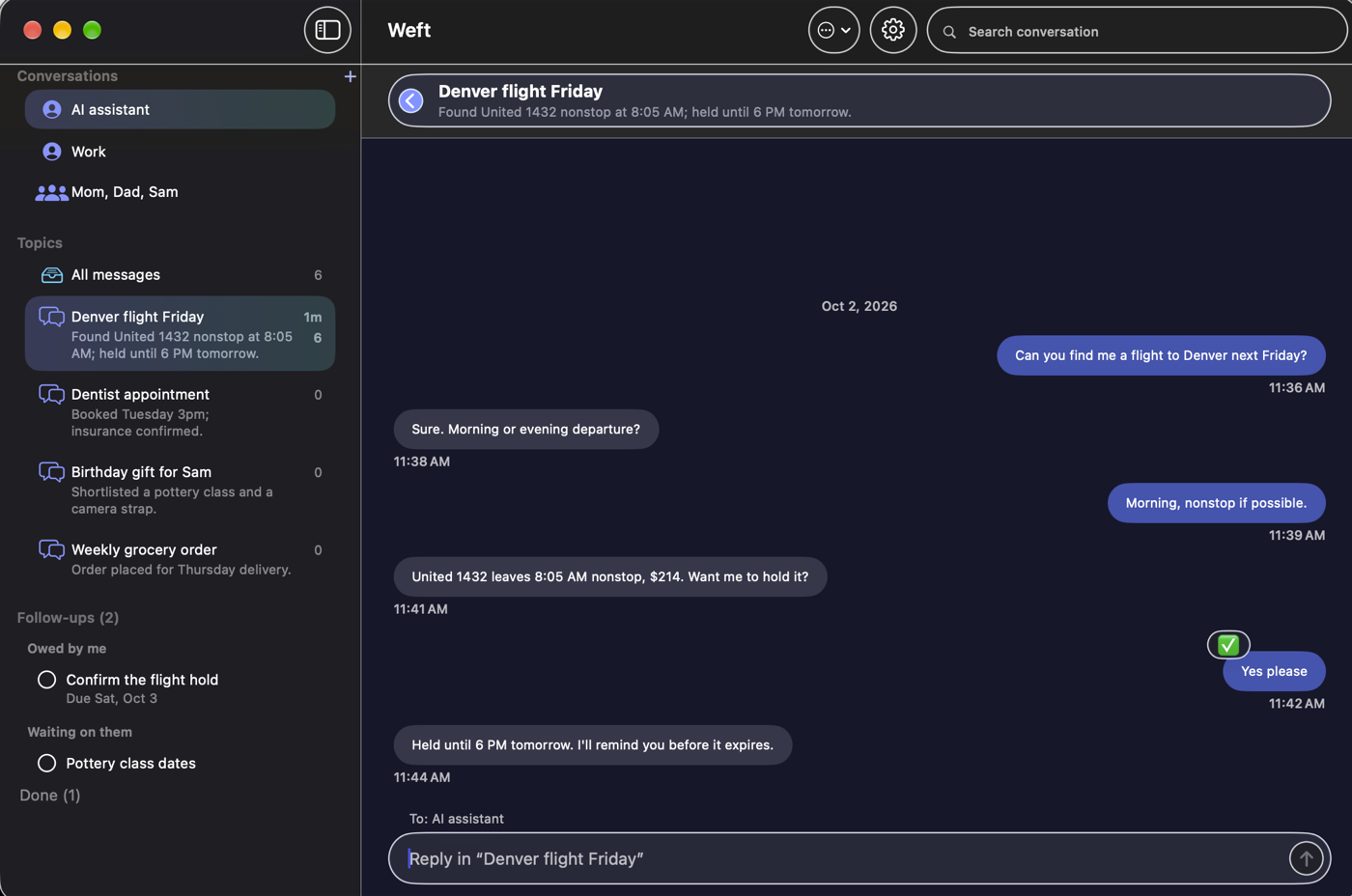
The same Weft window in Dark mode, with the Denver flight Friday topic open and the Topics and Follow-ups lists in the sidebar.
Light, Dark or Automatic appearance.

Questions about Weft

Is Weft free?

Yes. Weft is free and open source under the MIT licence. Download it from the Releases page on GitHub. The sorting is done by an AI you already have: a Claude subscription plus Claude Code, a ChatGPT subscription plus the Codex CLI, a Google account plus the Gemini CLI, or a Grok subscription plus the Grok CLI, each signed in with your normal account; or Ollama or LM Studio running on your Mac, with nothing to pay for.

Which Macs does Weft run on? Is there an iPhone or Windows version?

Weft needs a Mac running macOS 15 (Sequoia) or later, Apple Silicon or Intel, with Messages set up on that Mac. It is Mac only. iOS doesn't let apps read your messages, and Android only lets an app do so if it is your default texting app.

Does Weft need an API key or an account?

No. Weft never asks for an API key, and it has no account, no server, no analytics and no tracking. The subscription options use the command-line tool each company makes, signed in with your normal account.

Where do my messages go?

To sort, Weft sends the text of the conversations you added (and who sent each message) to the AI you chose, and nothing else. With Claude that is Anthropic, with ChatGPT it is OpenAI, with Gemini it is Google and with Grok it is xAI. With Ollama or LM Studio, message processing stays on your Mac. Before a conversation is sent to an AI for the first time, Weft asks, showing which AI, where it goes and how much of the history.
Why does Weft ask for Full Disk Access?

Messages stores its history in a protected folder, so macOS requires Full Disk Access before Weft can read it. Weft reads your Messages history only on your Mac and never changes it.

Does Weft change or delete my Messages?

No. Weft never changes your Messages history. It only reads it, and sends a message when you press Send.

Duke & Duke

Still have a question about Weft?

Contact us